FAQs

Monday – Friday: 9 AM – 5 PM PT
Saturday: 10 AM – 3 PM PT
Sunday: Closed
Schedule a call or Zoom meeting with a Member Advisor.
If you're a member, contact us through Digital Banking.
And here's a great place to start.
Payments
Automated Clearing House (ACH) payments are electronic payments made from one bank account to another. You will need to set up the ACH payment with your other financial institution by providing Stanford FCU’s routing number (#321177722) and your account number.
You can also use our Bill Pay to send payments by check or electronically, if available.
Need your account number?
- Your account number can be located:
- On your statements
- Within Digital Banking (select the account, then click the three dots
 > and select Account Details to view the Account Number)
 - On the bottom of your checks:
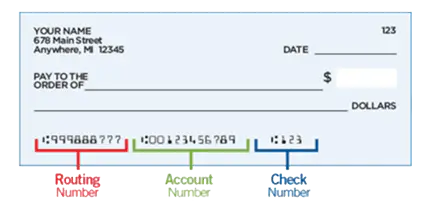
- Contact one of our Member Advisors at 888.723.7328, visit any of our branch locations, or send a secure Message in Digital Banking. For security purposes we will not include any account numbers via email.
You can pay any bill through Digital Banking’s free Bill Pay service:
- Log in to Digital Banking
- Select Move Money
- Click Bill Pay
- Follow the prompts
You may also schedule payments to other financial institutions by establishing an external transfer. Learn how to set up an external account.
The services available in Bill Pay include:
- Set up payees once to easily make payments
- Schedule automatic monthly payments for recurring bills
- View payment history for each payee
- Receive notifications about bills and payments
- Pay bills from your Stanford FCU checking (spending) account
- Pay the balance in full, instead of the minimum payment due
- Make a partial payment (e.g., an extra mortgage payment)
- Payee’s account number required
- Download or export payment data
- Receive and pay eBills
It’s easy to get started:
- Log in to Digital Banking
- Choose Move Money
- Select Bill Pay
- Complete a few more easy steps and you’re enrolled!
Bill Pay is a free service offered to Stanford FCU members through Digital Banking. All you need is a Stanford FCU checking (spending) account.
It’s easy to get started:
- Log in to Digital Banking
- Choose Move Money
- Bill Pay
Follow the prompts.
Follow these steps to cancel a scheduled bill payment:
- Log in to Digital Banking
- Choose Move Money
- Then Bill Pay
- Click Activity at the top
- Select the scheduled payment you want to cancel
- To finish, select Cancel Payment twice to confirm your request
Note that if a payment doesn’t appear under the Scheduled heading it has already been processed and can’t be canceled.
You cannot change the Auto-Pay date. The Auto-Pay date will always be the due date listed on your credit card statement.
Discover new ways to manage your credit card with convenient online Card Tools like text alerts, locking and unlocking your card, notifying us when you’ll be traveling, and more. You’ll be automatically enrolled to receive fraud alerts.
Stanford FCU offers several convenient ways to make your credit card payments:
- Make a payment in Digital Banking
- Enroll in Auto-Pay in Digital Banking to automate your monthly payments!
- Simply select your accounts, then check the box next to “Enroll in Auto-Pay” and select the “Payment Type” option.
- Click the Submit button when you’re finished
- Mail in your payment
- Stanford FCU VISA
PO BOX 37035
BOONE, IA 50037-0035
- Stanford FCU VISA
- Pay over the phone by calling 650.723.2509 (local) or 888.723.7328 toll free, option 0
- Visit one of our branches
You can also manage your credit card with convenient online Card Tools like text alerts, locking and unlocking your card, notifying us when you’ll be traveling, and more. You’ll be automatically enrolled to receive fraud alerts.
You can set up Auto-Pay to make your credit card payment each month, so you’ll never have to worry about making a late payment. You can set up Auto-Pay to pay the minimum balance, a specific amount, or the last statement balance. Auto-Pay saves you time because you don’t have to manually make a payment online or by mail each month.
Set up Auto-Pay to pay a Stanford FCU credit card:
- Log in to Digital Banking
- Select your “From Account” (the account you’ll use to make payments)
- Select your “To Account” (your credit card)
- Click Enroll in Auto Pay
- Select the Payment Type you want to use for Auto-Pay
- Click Submit
- Review your Auto-Pay details and click Confirm to complete setup
You’ve successfully set up Auto-Pay!
You can also manage your credit card with convenient online Card Tools like text alerts, locking and unlocking your card, notifying us when you’ll be traveling, and more. You’ll be automatically enrolled to receive fraud alerts.
Depending on the type of loan, there are two ways to cancel your automated loan payments.
- To cancel Auto-Pay for a credit card click here. Then select the Manage Auto-Pay tab, select the account, then Cancel Auto-Pay.
- To cancel automatic payments for all other loans: Visit Review Transactions in Digital Banking and choose the Recurring Transaction tab to locate the recurring loan payment that you want to cancel.
If you have questions or issues, please call 888.723.7328, use Chat during business hours, or send a secure Message through Digital Banking.
Of course! Stanford FCU offers several convenient methods to make your loan payments:
- Pay online through Digital Banking
- Set up automated transfers from a Stanford FCU checking (spending) account through Digital Banking
- Mail-in Payments
- Stanford Federal Credit Union
PO Box 10690
Palo Alto, CA 94303-0843
- Stanford Federal Credit Union
- Pay Over the Phone by contacting a Member Care Team Specialist at 650.723.2509 (local) or 888.723.7328 toll free, Option 0.
If you want to make a loan payment at another financial institution, click here.
Since interest accrues to your loan balance daily, your loan payoff amount changes every day.
Vehicle Loans and Personal Loans
- Log in to Digital Banking and choose Payoff & Close as the Payment Type.
- To determine your exact mortgage loan payoff amount, please contact our Member Care Team at 888.723.7328, send us a secure Message through Digital Banking, or visit one of our branch locations.
Yes, you can use an account at another financial institution to set up automatic payments for your Stanford FCU loans. You’ll first need to set up the external account using Plaid in Digital Banking. Click here to add an external account.
There are two ways to link your accounts:
- Instant Auth. Plaid uses an instant authentication, which means you don’t have to wait on microdeposits before linking an external account. To use Instant Auth, sign in with your online credentials for your external account.
- Same Day Microdeposits. If your external institution isn’t connected to Plaid, you can still use Plaid to link your accounts via Same Day Microdeposits. To complete this process, you will need your account and routing numbers. Once you submit the request, you will receive a verification code via email. The code is only valid for 7 days.
Some financial institutions scramble account numbers for security. This means you may not see your actual external account number in Digital Banking
Once your external account has been verified, you can set up automatic payments through the Make a Payment service:
- Choose your external account as the From account
- Select the loan you wish to pay
- Click the Enroll in Auto-Pay box
- Complete and submit the form
Haven’t signed up for Digital Banking yet? You can view your account history, transfer funds between your accounts, make a loan payment, access Bill Pay and eStatements…and more! Sign up for Digital Banking today to handle all your personal banking in one convenient and secure place.
Auto-Pay is a feature that allows you to set up a recurring monthly payment for your Stanford FCU credit card in Digital Banking. We’ll automatically withdraw your payment every month based on the parameters that you set. You can set up automatic payments for the Minimum Payment Due, the Last Statement Balance amount or a specific dollar amount.
Set up Auto-Pay to pay a Stanford FCU credit card:
- Log into Digital Banking
- Select your “From Account” (the account you’ll use to make payments)
- Select your “To Account” (your credit card)
- Click Enroll in Auto Pay
- Select the Payment Type you want to use for Auto-Pay
- Click Submit
- Review your Auto-Pay details and click Confirm to complete setup
You’ve successfully set up Auto-Pay!
You can also manage your credit card with convenient online Card Tools like text alerts, locking and unlocking your card, notifying us when you’ll be traveling, and more. You’ll be automatically enrolled to receive fraud alerts.
Apply for your Credit Card today! Our online credit card application process is secure, quick and simple. Current members can apply through Digital Banking. Non-members must first apply for membership online in as little as 10 minutes.