Digital Banking


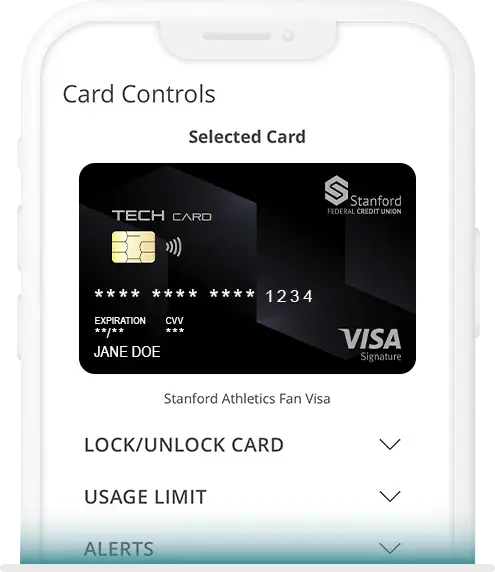
- Instant digital card
- Lock and unlock your debit and credit cards
- Set up text alerts to monitor transactions
- Set spending limits
- Submit a travel notification so we don't block your cards
- View and redeem credit card rewards
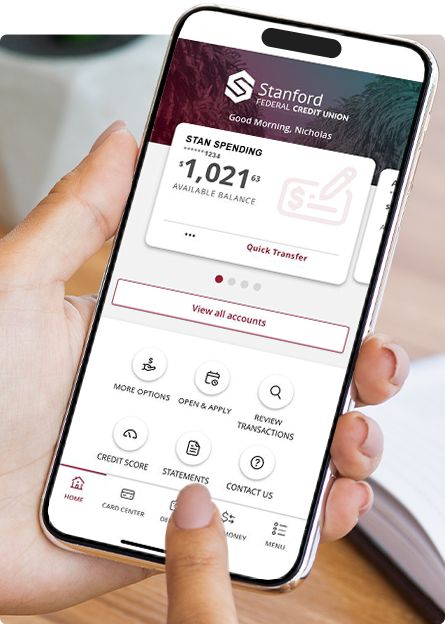
- View your account balances and transactions
- Deposit checks
- View and store eStatements and other documents
- Open another account, apply for a loan or credit card and check the application status
- Renew Certificates or choose different terms and options
- Earn gift cards while boosting your financial IQ with Zogo in Digital Banking
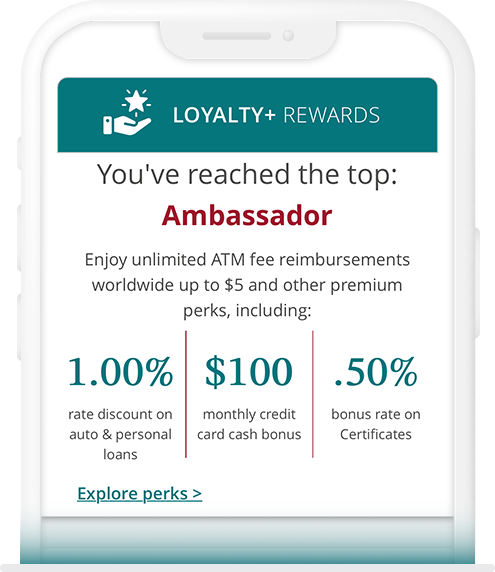
- Check your Loyalty+ rewards status
- Generate your unique promo code to refer friends (you'll each get a cash bonus!)
- Get cash bonuses when you buy gift cards (for yourself or others) through Digital Banking
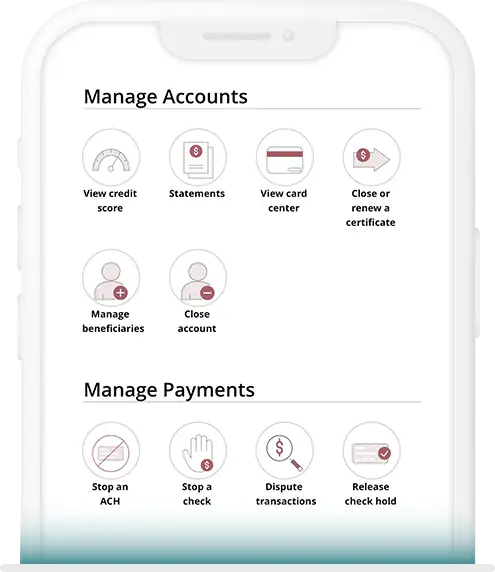
- Transfer funds between your accounts, other members and your other (external) banks
- Make a payment to your Stanford FCU loans and credit cards
- Automate your loan and credit card payments
- Pay bills
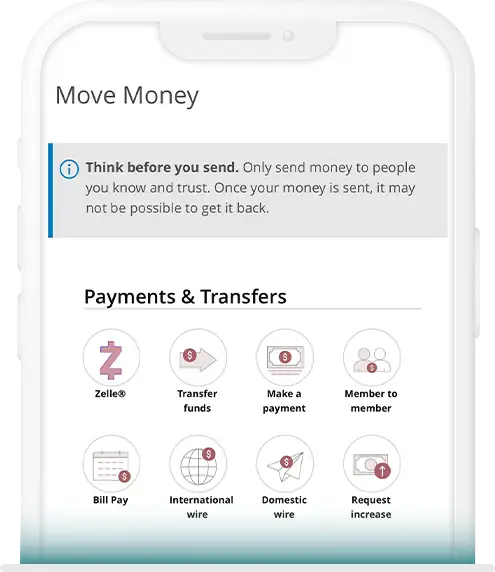
- Send money to anyone with a mobile phone or email address through Zelle®
- Send and receive domestic and international wires
- Touch and face ID for personalized protection
- Go paperless with important documents and statements to keep them out of the mail
- Use secure Message for encrypted communications and to send and receive documents
- Manage your user information: Address, phone, email, Login ID and password
- Set security alerts
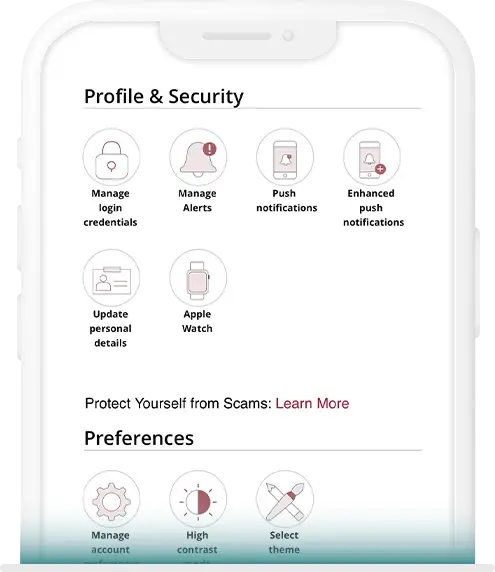



You can transfer funds between your Stanford FCU accounts, to another Stanford FCU member (if you know the account number), or to and from your accounts at another financial institution. If you want to send money to someone who is not a Stanford FCU member, you can use Zelle® or send a Wire Transfer.
- Click here to transfer funds between your Stanford FCU accounts
- Click here to transfer funds to another member
- Click here to transfer funds to and from your accounts at another financial institution
- From there you can connect your external account instantly through Plaid
- Once the external account is established, it will always appear under the normal Transfer Funds service as an option to transfer to or from
You can set up recurring or future dated transfers through Digital Banking by clicking here.
- For a recurring transfer use the Frequency drop-down menu to choose when you want the transfer to occur
- To make a future dated transfer select the date from the calendar
You can transfer Member to Member within Digital Banking, and the Link Account feature allows you to make recurring or future-dated transfers to another Stanford FCU member’s account instead of just once. No information other than the deposit is shared when you use this feature.
Yes, you can transfer funds to another Stanford FCU member through Digital Banking with a Member to Member Transfer. You’ll need the other member’s Account Number, Account Type (e.g., checking or savings) and email address to ensure the funds go to the right account. Select either Single Transfer for a one-time transaction or Link Account for continuous and future transactions.
The transfer will be immediate.
You can edit or delete your External Accounts in Digital Banking by going to Profile & Settings > Manage Account Preferences then scroll down and click on the account to open your edit options. You can edit Recurring Transactions through the Transaction Activity Center. Then choose the Recurring Transactions tab, to edit the series.
Our daily cut-off time for processing External Transfers to and from another financial institution is 1:00 pm PT.
If you made your transfer request before the cut-off time, your request will be scheduled for the following business day.
If you made your request after the cut-off time, your request will be scheduled on the second business day.
Scheduled and Recurring Transfers are processed on their send date.
The other financial institution may take an additional business day to process.
Digital Banking transfers between your own accounts and other Stanford FCU member accounts are immediate. Transfers to and from your accounts at other financial institutions may take several days. If you have questions about transfers, please send us a secure Message through Digital Banking, or call 888.723.7328.
If you have the available credit limit you can easily transfer balances from another credit or charge card to your Stanford FCU credit card through Card Center in Digital Banking. Click here to transfer a balance (with no fees!).
You can also manage your credit card with convenient online Card Tools like text alerts, locking and unlocking your card, notifying us when you’ll be traveling, and more. You’ll be automatically enrolled to receive fraud alerts.
If you’re enrolled in eStatements through Digital Banking, you’ll receive an email whenever a statement or notice is available. Since the information is online, you can access it any time. You can print statements as needed, and we’ll store up to 3 years’ worth of statements for you. If you’d like a copy of a statement prior to this timeframe, you can use our Research Request option in Digital Banking, contact a Member Care Team Specialist at 888.723.7328, use Chat, or send a secure Message through Digital Banking.
If you’re not enrolled in eStatements yet, you’ll receive your paper statement in the mail at the address we have on file for you.
Sign up for eStatements today and go green with electronic delivery!
- Fast and convenient - eStatements arrive sooner than traditional paper statements and can be viewed from any device.
- Reduce waste - Help reduce the amount of paper used for printing and mailing.
- Secure - Digital Banking is a safe interface to store your statements.
You can find your eStatement (and other important documents) by logging into Digital Banking.
You’ll need a PDF reader to view your eStatement.
Sign up for eStatements today and go green with electronic delivery!
- Fast and convenient - eStatements arrive sooner than traditional paper statements and can be viewed from any device.
- Reduce waste - Help reduce the amount of paper used for printing and mailing.
- Secure - Digital Banking is a safe interface to store your statements.
Sign up for eStatements today and go green with electronic delivery!
Here’s why you should consider enrolling:
- Fast and convenient - eStatements arrive sooner than traditional paper statements and can be viewed from any device.
- Reduce waste - Help reduce the amount of paper used for printing and mailing.
- Secure - Digital Banking is a safe interface to store your statements.
Tax forms are available through Digital Banking. Your available tax forms will appear under eTax.
Please note: All previous year tax filing forms are mailed out and posted online by January 31st or the required deadline, if later.
To open a Certificate or CD, you must be a current member of Stanford Federal Credit Union. If you are a member, click here to open a new account.
If you are a current member and have not registered for Digital Banking, you can enroll here.
If you are not yet a member and would like to open a Certificate, please first open a checking (spending) or savings account to become a member.
Once your Certificate matures you have a seven (7) calendar day grace period following maturity to renew or make changes. Your Certificate will automatically renew for the same term, or you can choose a different term or close the Certificate directly in Digital Banking. You can close or renew a 7-Month No Penalty Certificate any time after the first 7 days from opening.
If you don’t make any changes through the portal or by contacting us, your Certificate will automatically renew for the same term on the last day of the maturity grace period with the rate that is in effect on that day. You can view current rates at sfcu.org/why-stanford-fcu/market-leading-rates/deposit-rates.
Auto-Pay is a feature that allows you to set up a recurring monthly payment for your Stanford FCU credit card in Digital Banking. We’ll automatically withdraw your payment every month based on the parameters that you set. You can set up automatic payments for the Minimum Payment Due, the Last Statement Balance amount or a specific dollar amount.
Set up Auto-Pay to pay a Stanford FCU credit card:
- Log into Digital Banking
- Select your “From Account” (the account you’ll use to make payments)
- Select your “To Account” (your credit card)
- Click Enroll in Auto Pay
- Select the Payment Type you want to use for Auto-Pay
- Click Submit
- Review your Auto-Pay details and click Confirm to complete setup
You’ve successfully set up Auto-Pay!
You can also manage your credit card with convenient online Card Tools like text alerts, locking and unlocking your card, notifying us when you’ll be traveling, and more. You’ll be automatically enrolled to receive fraud alerts.
Apply for your Credit Card today! Our online credit card application process is secure, quick and simple. Current members can apply through Digital Banking. Non-members must first apply for membership online in as little as 10 minutes.
Yes, you can use an account at another financial institution to set up automatic payments for your Stanford FCU loans. You’ll first need to set up the external account using Plaid in Digital Banking. Click here to add an external account.
Plaid uses an instant authentication, which means you don’t have to wait on microdeposits before linking an external account. To use Instant Auth, sign in with your online credentials for your external account.
Some financial institutions scramble account numbers for security. This means you may not see your actual external account number in Digital Banking
Once your external account has been verified, you can set up automatic payments through the Make a Payment service:
- Choose your external account as the From account
- Select the loan you wish to pay
- Click the Enroll in Auto-Pay box
- Complete and submit the form
Haven’t signed up for Digital Banking yet? You can view your account history, transfer funds between your accounts, make a loan payment, access Bill Pay and eStatements…and more! Sign up for Digital Banking today to handle all your personal banking in one convenient and secure place.
Since interest accrues to your loan balance daily, your loan payoff amount changes every day.
Vehicle Loans and Personal Loans
- Log in to Digital Banking and choose Payoff & Close as the Payment Type.
- To determine your exact mortgage loan payoff amount, please contact our Member Care Team at 888.723.7328, send us a secure Message through Digital Banking, or visit one of our branch locations.
Of course! Stanford FCU offers several convenient methods to make your loan payments:
- Pay online through Digital Banking
- Set up automated transfers from a Stanford FCU checking (spending) account through Digital Banking
- Mail-in Payments
- Stanford Federal Credit Union
PO Box 10690
Palo Alto, CA 94303-0843
- Stanford Federal Credit Union
- Pay Over the Phone by contacting a Member Care Team Specialist at 650.723.2509 (local) or 888.723.7328 toll free, Option 0.
If you want to make a loan payment at another financial institution, click here.
Depending on the type of loan, there are two ways to cancel your automated loan payments.
- To cancel Auto-Pay for a credit card click here. Then select the Manage Auto-Pay tab, select the account, then Cancel Auto-Pay.
- To cancel automatic payments for all other loans: Visit Review Transactions in Digital Banking and choose the Recurring Transaction tab to locate the recurring loan payment that you want to cancel.
If you have questions or issues, please call 888.723.7328, use Chat during business hours, or send a secure Message through Digital Banking.
You can set up Auto-Pay to make your credit card payment each month, so you’ll never have to worry about making a late payment. You can set up Auto-Pay to pay the minimum balance, a specific amount, or the last statement balance. Auto-Pay saves you time because you don’t have to manually make a payment online or by mail each month.
Set up Auto-Pay to pay a Stanford FCU credit card:
- Log in to Digital Banking
- Select your “From Account” (the account you’ll use to make payments)
- Select your “To Account” (your credit card)
- Click Enroll in Auto Pay
- Select the Payment Type you want to use for Auto-Pay
- Click Submit
- Review your Auto-Pay details and click Confirm to complete setup
You’ve successfully set up Auto-Pay!
You can also manage your credit card with convenient online Card Tools like text alerts, locking and unlocking your card, notifying us when you’ll be traveling, and more. You’ll be automatically enrolled to receive fraud alerts.
Stanford FCU offers several convenient ways to make your credit card payments:
- Make a payment in Digital Banking
- Enroll in Auto-Pay in Digital Banking to automate your monthly payments!
- Simply select your accounts, then check the box next to “Enroll in Auto-Pay” and select the “Payment Type” option.
- Click the Submit button when you’re finished
- Mail in your payment
- Stanford FCU VISA
PO BOX 37035
BOONE, IA 50037-0035
- Stanford FCU VISA
- Pay over the phone by calling 650.723.2509 (local) or 888.723.7328 toll free, option 0
- Visit one of our branches
You can also manage your credit card with convenient online Card Tools like text alerts, locking and unlocking your card, notifying us when you’ll be traveling, and more. You’ll be automatically enrolled to receive fraud alerts.
You cannot change the Auto-Pay date. The Auto-Pay date will always be the due date listed on your credit card statement.
Discover new ways to manage your credit card with convenient online Card Tools like text alerts, locking and unlocking your card, notifying us when you’ll be traveling, and more. You’ll be automatically enrolled to receive fraud alerts.
Follow these steps to cancel a scheduled bill payment:
- Log in to Digital Banking
- Choose Move Money
- Then Bill Pay
- Click Activity at the top
- Select the scheduled payment you want to cancel
- To finish, select Cancel Payment twice to confirm your request
Note that if a payment doesn’t appear under the Scheduled heading it has already been processed and can’t be canceled.
Bill Pay is a free service offered to Stanford FCU members through Digital Banking. All you need is a Stanford FCU checking (spending) account.
It’s easy to get started:
- Log in to Digital Banking
- Choose Move Money
- Bill Pay
Follow the prompts.
The services available in Bill Pay include:
- Set up payees once to easily make payments
- Schedule automatic monthly payments for recurring bills
- View payment history for each payee
- Receive notifications about bills and payments
- Pay bills from your Stanford FCU checking (spending) account
- Pay the balance in full, instead of the minimum payment due
- Make a partial payment (e.g., an extra mortgage payment)
- Payee’s account number required
- Download or export payment data
- Receive and pay eBills
It’s easy to get started:
- Log in to Digital Banking
- Choose Move Money
- Select Bill Pay
- Complete a few more easy steps and you’re enrolled!
You can pay any bill through Digital Banking’s free Bill Pay service:
- Log in to Digital Banking
- Select Move Money
- Click Bill Pay
- Follow the prompts
You may also schedule payments to other financial institutions by establishing an external transfer. Learn how to set up an external account.
Automated Clearing House (ACH) payments are electronic payments made from one bank account to another. You will need to set up the ACH payment with your other financial institution by providing Stanford FCU’s routing number (#321177722) and your account number.
You can also use our Bill Pay to send payments by check or electronically, if available.
Need your account number?
- Your account number can be located:
- On your statements
- Within Digital Banking (select the account, then click the three dots
 > and select Account Details to view the Account Number)
 - On the bottom of your checks:
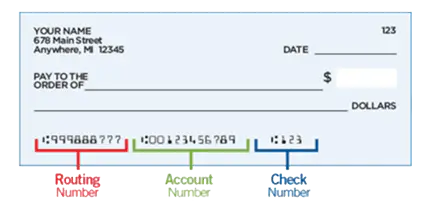
- Contact one of our Member Advisors at 888.723.7328, visit any of our branch locations, or send a secure Message in Digital Banking. For security purposes we will not include any account numbers via email.
- To track ongoing disputes, go to Card Center > Dispute Transactions, then select Track Dispute.
- You’ll be able to view your claim status and any communications about your case. You can also upload more documents or withdraw a case.
Don’t forget to add your credit card to your mobile wallet (Apple Pay, Google Pay or Samsung Pay). You can also manage your credit and debit cards with convenient online Card Tools like text alerts, locking and unlocking your card, notifying us when you’ll be traveling, and more. You’ll be automatically enrolled to receive fraud alerts. And be sure to take your card with you when you travel - there are NO foreign transaction fees (other cards charge up to 3%).
There is no card replacement fee to replace lost or stolen debit or credit cards. You can find all of our current Schedule of Fees listed here.
If your card is lost or stolen, you can log in to Digital Banking to order a new card, grab the card info for online purchases, download the digital version to your wallet, and report your card lost or stolen. Don’t use this service if you need rushed delivery, are shipping to an alternate address, or you’re simply replacing a damaged card and want to keep the same card number.
- Log in to Card Center in Digital Banking
- Click on Replace & Order Card
- Follow the steps to submit your request and block your card
- Return to Card Center to add your new card to your digital wallet and grab your card info for online shopping and updating any recurring payments
- If you see suspicious transactions in your account history, visit Dispute Transactions in Card Center to report them to us
You can also block your card and receive a new one by calling 800.234.5354 (domestic) or 303.967.1096 (international collect).
If you simply need a replacement for a damaged card, please contact a Member Care Team Specialist at 888.723.7328or send us a secure Message through Digital Banking to request a new card.
Take control of your cards with Card Tools!
Credit and debit cards are often a source of fraud, as retailers frequently experience data breaches and the card information they store becomes available on the black market. Stanford FCU has strong fraud prevention systems to help protect our members, but we also have tools to help you manage your own cards!
Check out the Card Tools that are available in Digital Banking and take control of your cards today!
Your credit card rewards are listed on the last page of your credit card statement, and you can also view and redeem your credit card rewards balance at the Card Center in Digital Banking:
- Select your card account to view your rewards
- Click on the Redeem your rewards points link (this will take you to the Rewards site to redeem your points for cash back, gift cards, travel or merchandise)
You can also manage your credit card with convenient online Card Tools like text alerts, locking and unlocking your card, notifying us when you’ll be traveling, and more. You’ll be automatically enrolled to receive fraud alerts.
Yes, your debit card and credit card are accepted internationally AND they have no foreign transaction fees!
If your ATM card is linked to a checking (spending) account, it will also be accepted internationally. If you’re traveling out of state or out of the country, be sure to set a Travel Notice so we don’t block your credit or debit card. List all areas you may be visiting, including layover cities. Once submitted, you should receive a secure Message that it has been received.
If you’re already traveling, please call us at 888.723.7328 for assistance.
We don’t allow card transactions in countries sanctioned by the U.S. or prohibited by U.S. law.
We have other convenient online Card Tools for your debit card, like text alerts, locking and unlocking your card, and more. You’ll be automatically enrolled to receive fraud alerts.
You may have received a call, text or email from our fraud prevention center due to suspicious activity on your Card. If they suspect your card security has been breached, they may suspend the use of your card until you validate the questionable purchases.
Always remember to file a Travel Notice before leaving the country or even your state, so we don’t block your card for suspicious activity. List all areas you may be visiting, including layover cities. Once the Travel Notice is submitted, you’ll receive a secure Message that it has been received. Please allow one business day for processing.
You can also manage your credit and debit cards with convenient online Card Tools like text alerts, locking and unlocking your card, notifying us when you’ll be traveling, and more. You’ll be automatically enrolled to receive fraud alerts.
If you suspect your Stanford FCU card has been compromised, contact us immediately at 888.723.7328 so that we can help protect you.
If your personal identification number (PIN) isn’t working, you may need to reset it. There are multiple ways to reset your PIN.
In Digital Banking
- Go to Card Center > Digital Card Controls > Set/Reset PIN. We’ll send you a Secure Access Code to complete a PIN change.
By phone
- If you reside within the U.S.: You can reset your card PIN yourself by calling 888.891.2435. Be sure to call from the phone number we have on file at Stanford FCU.
- If you reside outside the U.S.: Go to Card Center > Digital Card Controls > Set/Reset PIN. We’ll send you a Secure Access Code to complete a PIN change. If you need further assistance, please call 650.723.2509 or 888.723.7328 to speak with a Member Care Team Specialist.
You can visit one of our branch locations to have a new card issued instantly. If your card is lost or stolen, you can log in to Digital Banking to order a new card, grab the card info for online purchases, download the digital version to your wallet, and report your card lost or stolen. Don’t use this service if you need rushed delivery, are shipping to an alternate address, or you’re simply replacing a damaged card and want to keep the same card number.
- Log in to Card Center in Digital Banking
- Click on Replace & Order Card
- Follow the steps to submit your request and block your card
- Return to Card Center to add your new card to your digital wallet and grab your card info for online shopping and updating any recurring payments
- If you see suspicious transactions in your account history, visit Dispute Transactions in Card Center to report them to us
You can also block your card and receive a new one by calling 800.234.5354 (domestic) or 303.967.1096 (international collect).
If you simply need a replacement for a damaged card, please contact a Member Care Team Specialist at 888.723.7328 or send us a secure Message through Digital Banking to request a new card.
Take control of your cards with Card Tools!
Credit and debit cards are often a source of fraud, as retailers frequently experience data breaches and the card information they store becomes available on the black market. Stanford FCU has strong fraud prevention systems to help protect our members, but we also have tools to help you manage your own cards!
Check out the Card Tools that are available in Digital Banking and take control of your cards today!
If you received this message, your card may be locked, or you may need to reset your personal identification number (PIN). There are multiple ways to reset your PIN.
In Digital Banking
- Go to Card Center > Digital Card Controls > Set/Reset PIN. We’ll send you a Secure Access Code to complete a PIN change.
By phone
- If you reside within the U.S.: You can reset your card PIN yourself by calling 888.891.2435. Be sure to call from the phone number we have on file at Stanford FCU.
- If you reside outside the U.S.: Go to Card Center > Digital Card Controls > Set/Reset PIN. We’ll send you a Secure Access Code to complete a PIN change. If you need further assistance, please call 650.723.2509 or 888.723.7328 to speak with a Member Care Team Specialist.
To check if you have set up any Card Controls, go to Card Center > Digital Card Controls > Card Controls.
For security purposes, your personal identification number (PIN) is not visible to our staff. However, you can reset your PIN.
In Digital Banking
- Go to Card Center > Digital Card Controls > Set/Reset PIN. We’ll send you a Secure Access Code to complete a PIN change.
By phone
- If you reside within the U.S.: You can reset your card PIN yourself by calling 888.891.2435. Be sure to call from the phone number we have on file at Stanford FCU.
- If you reside outside the U.S.: Please call 888.723.7328 speak with a Member Care Team Specialist, or send us a secure Message through Digital Banking
At the branch
- This option is only available for new cards that are instant-issued at the branch.
If you have a new debit or credit card
- Instant-issued at a branch: You’ll be able to select your own unique PIN at the time the card is created.
- Mailed within the U.S.: You should receive your new card within 5-7 days of your request. You will NOT receive a separate PIN mailer. As soon as you receive and activate your card, you can call the number listed on the card to select your own unique PIN. Be sure to call from the phone number we have on file at Stanford FCU.
- Mailed outside the U.S.: Go to Card Center > Digital Card Controls > Set/Reset PIN. We’ll send you a Secure Access Code to complete a PIN change. If you need further assistance, please call 650.723.2509 or 888.723.7328 to speak with a Member Care Team Specialist.
You can submit a travel notification through Digital Banking to ensure that we don’t block your debit or credit card due to suspicious activity. Be sure to provide all your travel details, including all the destinations you may be visiting and any layover cities. Once you submit the notification, you’ll receive a secure Message confirmation that it was received)
If you already started your trip, please call 888.723.7328 for assistance.
Note: We do not allow card transactions in countries sanctioned by the U.S. or prohibited by U.S. law.
Please call us immediately us at 888.723.7328 to close your card, prevent additional fraud charges, and request a new card.
Steps to dispute a debit or credit card transaction
- To dispute transactions from Digital Banking, go to Card Center, then select Dispute Transactions.
- Select Dispute Transactions again, then select the account associated with the dispute.
- Complete the steps to give more details on the reason for the dispute. You’ll also have a chance to upload any relevant documents.
- To track ongoing disputes, go to Card Center > Dispute Transactions, then select Track Dispute.
- You’ll be able to view your claim status and any communications about your case. You can also upload more documents or withdraw a case.
Note: In order to preserve your rights, you MUST submit your dispute documentation within 60 days of the date of the statement that the transaction(s) appeared.
You can also manage your credit and debit cards with convenient online Card Tools like text alerts, locking and unlocking your card, notifying us when you’ll be traveling, and more. You’ll be automatically enrolled to receive fraud alerts.
Plaid is an online service that instantly links external accounts to your Stanford FCU bank account. Click here to access Plaid in Digital Banking.
Plaid uses an instant authentication, which means you don’t have to wait on microdeposits before linking an external account. To use Instant Auth, sign in with your online credentials for your external account.
Some financial institutions scramble account numbers for security. This means you may not see your actual external account number in Digital Banking.
A canceled check is a check which has cleared the depositor’s account, and therefore marked “canceled” by the depositor’s financial institution. Copies of canceled checks can be used as proof of payment and are accessible for up to 7 years.
You can get a copy of a cleared check online. Just log into Digital Banking and search for the transaction in your transaction history. When you click on the check number, you should be able to view and print a copy of the cleared check.
Please note: You can view the past 18 months’ worth of transactions in Digital Banking. If you need a check copy prior to this time frame or a range of checks, you can use our Research Request option in Digital Banking.
You can check your account balances and transactions 24/7 by logging in to Digital Banking. Learn more about Digital Banking on our website.
Before you close your Stanford FCU account, please note that you’re a member for life, and we have hundreds of members doing business with us around the world! Our Visa debit and credit cards are international, with no foreign transaction fees. Let us know how we can serve you!
If you absolutely must close your account (and we hate to see you go), there are three options:
- Close your account in Digital Banking
- Sign a written request and mail it to Stanford FCU, c/o Account Closure, P.O. Box 10690, Palo Alto, CA 94303-0843
- Visit a local Stanford FCU branch
Members also have access to 6,000 Co-op shared branches at other credit unions, where you can conduct transactions on your Stanford FCU accounts.
Your account number can be located:
- Within Digital Banking: Select the account, then click the three dots > and select Account Details to view the Account Number
- On the bottom of your checks:
- Contact our Member Care Team at 888.723.7328, visit any of our branch locations, or send a secure Message in Digital Banking. For security purposes we will not include any account numbers via email.
You can close a checking (spending), savings or money market account in Digital Banking and direct us on what to do with the remaining account balance: Either transfer the balance to another Stanford FCU account where you’re the primary or joint owner, or have a Cashier’s Check mailed to you. Click here to close an account in Digital Banking.
You may close a Certificate on the maturity date or during the 7-day grace period that follows it.
Alternatively, you may close your account by calling 888.723.7328, sending a secure Message in Digital Banking, or visiting a local Stanford FCU branch.
You’ll need to contact us by calling 888.723.7328, using Chat during business hours, or sending us a secure Message through Digital Banking.
Haven’t signed up for Digital Banking yet?
You can view your account history, transfer funds between your accounts, make a loan payment, access Bill Pay and eStatements…and more!
Sign up for Digital Banking today to handle all your personal banking in one convenient and secure place.
There are several ways to sign up for direct deposit:
- You can sign up for direct deposit through your employer or through the government agency that issues your checks.
- You can use our Non-Federal Direct Deposit Enrollment Request Form to assist your employer if needed.
- You can also fill out a form provided by your employer or the government agency. You’ll need the following information:
- Stanford FCU’s routing number: 321177722
- Your account number (log in to Digital Banking, click on the three dots at the bottom of the account tile on the home page, and choose Account Details)
- Our address: Stanford Federal Credit Union, P.O. Box 10690, Palo Alto, CA 94303-0843
- Our phone number: 650.723.2509
Note: Your member number is not your account number. Each savings or checking account has a separate, unique account number. You can also find your account number on your checks:
However you sign up for direct deposit, you’ll get your money up to two days before payday, because we always post payroll as soon as we receive your direct deposit!
It’s easy to add or switch your direct deposit to Stanford FCU through your employer or the Social Security Administration. You can also use our Non-Federal Direct Deposit Enrollment Request Form to assist your employer if needed. You’ll need the following information:
- Stanford FCU’s routing number: 321177722
- Your account number (log in to Digital Banking, click on the three dots at the bottom of the account tile on the home page, and choose Account Details)
- Our address: Stanford Federal Credit Union, P.O. Box 10690, Palo Alto, CA 94303-0843
- Our phone number: 650.723.2509
Once your company receives the information or form, the direct deposit switches typically take 1-2 pay cycles.
Check holds vary based on the length of membership and the check amount. Click here to request a Check Hold Release through Digital Banking.
All of our personal checking (spending) accounts are free, with no minimum balance or other requirements. For up-to-date information on our spending account requirements, visit our Personal Checking Account page.
Our Business Spending account does require a minimum balance to avoid a monthly service fee. For more information on Business Spending, visit our Business Checking account page.
You’ll also find that our account fees(link to Service Fees page) are considerably fewer and lower than the big banks!
Although this is the least secure and slowest way to make a deposit, you can mail a check for deposit to:
Stanford FCU
P.O. Box 10690
Palo Alto, CA 94303-0843
You can also stop by one of our branches, use a shared branch or deposit-taking ATM, or make a deposit with our Digital Banking.
Follow these steps to deposit a check through our Digital Banking:
- Endorse your check by signing the back
- Log into our Digital Banking, and go to Move Money or choose Deposit in the mobile app
- Select the account to deposit into
- Enter the check amount
- Place your check on a plain, dark surface and capture the front, then back
- Submit your deposit
- Follow any additional prompts
Retain the check for 90 days before destroying.
Note: There is a maximum check amount of $50,000.
Although you can order checks from any vendor, we strongly recommend that you order them through Stanford FCU’s preferred vendor. This helps ensure quality and security to ensure there are no issues with your checks. And the first box of checks is free for new members!
If you previously ordered checks through Stanford FCU and your information has not changed, you may reorder checks in Digital Banking.
You can also visit any of our branch locations or call a Member Care Team Specialist at 650.723.2509 or 888.723.7328 toll free.
If you previously ordered checks through Stanford FCU and your information has not changed, you may reorder checks through Digital Banking by clicking here.
If any of your information has changed, you will need to contact us to place your order: Visit any of our branch locations, call a Member Advisor at 888.723.7328, or send a secure Message through Digital Banking.
There is no specific time, but your direct deposit will be posted to your account before 8:00 AM PT on your pay date, and we post the funds as soon as we receive the file from your employer (up to two days before payday!).
You can check your direct deposit and available balance easily through Digital Banking!
A credit score predicts how likely you are to pay back a loan. Companies use a mathematical formula called a scoring model to create your credit score from information in your credit report. Your credit report contains information about your experience paying loans and other bills.
Stanford FCU provides each member with their free credit score quarterly in Digital Banking.
Some factors that make up a typical credit score include:
- Your history paying bills
- Your current unpaid debt, like credit card and other loan balances
- The number and type of loan accounts you have
- How long you’ve had loans
- How much of your available credit you’re using
- Any new applications for credit
- Whether you’ve had a debt sent to collections, a foreclosure or bankruptcy
Banks, credit unions and other lenders use credit scores to make decisions about whether to offer you a mortgage, credit card, auto loan, or other credit product. The credit score is also used to determine the interest rate you receive on a loan or credit card, and the credit limit.
It’s important to know that there are many different types of credit scores available to you and lenders. The actual scores will vary depending on the scoring model, the source of your credit history, the type of loan product, and even the day it was calculated.
Stanford FCU uses two different credit scores:
- FICO® Score for real estate loans
- VantageScore 3.0 for consumer loans (vehicle, personal and credit cards)
Both credit scores range from 300 to 850 and were developed jointly by the three major credit bureaus (Experian, Equifax, and Transunion). Usually a higher score makes it easier to qualify for a loan and may result in a better interest rate.
Where did Stanford FCU get my VantageScore that’s posted online?
Stanford FCU partners with Experian to provide all of our members with your free VantageScore. You can also request your free credit report directly from annualcreditreport.com.
Will viewing my score hurt my credit?
No, Stanford FCU does a soft pull on your credit so it will not affect your score.
Can I opt out of viewing my score?
Stanford FCU provides your VantageScore based on Experian data to help you monitor your credit so you can qualify for more affordable loans. You can opt out of receiving it by calling 888.723.7328 or sending us a secure Message through Digital Banking.
Will this VantageScore be used for my consumer loan or mortgage loan application?
The credit score you see in your Digital Banking is used for informational purposes only, as your actual score can change frequently. When you apply for a loan with us, we will pull your full credit report and use that credit score and history.
How often is my online score updated?
We will update your score four times per year at the beginning of each quarter (January 1st, April 1st, July 1st, and October 1st). New members won’t see their credit score until the beginning of the quarter following their new membership date.
Why can’t I see my credit score in Digital Banking?
There are several reasons why you may not have a credit score:
- You’re a new Stanford FCU member
- You opted out (you can opt back in by calling 888.723.7328 or sending us a secure Message through Digital Banking
- Our information about you is mismatched or missing, e.g., an address change that has not been updated with Stanford FCU or Experian
- Your credit history is too new
- Your account status is abandoned, bankrupt, fraud, closed, revoked, charged off, lost or stolen
- You have a foreign address
Yes. The third party must provide an Authorization for Payoff along with the payment. The Authorization for Payoff will be provided by the bank or lender that is financing the loan for the purchase of the vehicle.
We have more than just car loans! You can also find great rates on new and used motorcycles, recreational vehicles and even boats! We even offer a convenient auto loan calculator to help you estimate your monthly payments.
Members will apply through Digital Banking. Non-members must first apply for membership online in as little as 10 minutes.
You may request a Payoff Letter in Digital Banking that includes all the information needed for another lender to pay off your Stanford FCU personal, vehicle, motorcycle, or RV loan. The letter will include the payoff amount that is due 10 days from when you generate the letter, as well as your name, account number, and the Stanford FCU address to send the check. If the payment is received before the 10 days, we’ll refund the difference to you. If the payment is received after the 10 days, the amount will not cover the full payment due as interest accrues daily. Note: If you wish to pay off the loan from your own Stanford FCU account, there’s an option to pay the Total Amount Due under Make a Payment in Digital Banking.
- Log into Digital Banking
- From the home page, click on the loan that you want to pay off
- Click on the Payoff Letter tab
- Click on the Payoff Letter widget to download a PDF for a 10-day payoff letter
Alternatively, you may request a Payoff Letter by calling 888.723.7328, using Chat, sending a secure Message in Digital Banking, or visiting a local Stanford FCU branch.
Yes, and you can use the funds for anything you need! Personal Loans and Lines of Credit are perfect any time you need money to consolidate debt, pay medical expenses, or just want funds available for an emergency.
It’s quick and easy to apply, and you can get the funds in as little as one business day.
Current members can apply through Digital Banking. Non-members must first apply for membership online in as little as 10 minutes.
When you apply for a credit card, auto or personal loan, you should have a decision within 1-2 business days.
Mortgage loans are more complex, and the decision may take several days as we gather additional information from you.
Apply today! Members will apply for a credit card, auto or personal loan through Digital Banking or the mobile app. Non-members must first apply for membership online in as little as 10 minutes. You can also apply by phone at 888.723.7328 or make an appointment at a local branch to discuss your loan needs.
Looking for a home loan? Both members and non-members can apply for a home loan online .
We offer financing up to 125% loan-to value (LTV) based on the Manufacturer's Suggested Retail Price (MSRP) for new vehicles and the average Kelley Blue Book price for used vehicles - plus tax, license, documentation and recording fees, Guaranteed Auto Protection (GAP) and Mechanical Breakdown Insurance (MBI).
Our maximum loan term is 84 months for cars less than three model years old, with less than 36,000 miles.
Visit our Auto Loan web page for more information!
At Stanford FCU, we have more than just car loans. You can also find great rates on new and used motorcycles, recreational vehicles and even boats! We even offer a convenient auto loan calculator to help you estimate your monthly payments.
Members will apply through Digital Banking. Non-members must first apply for membership online in as little as 10 minutes. You can also apply by phone at 888.723.7328 or make an appointment at a local branch to discuss your loan needs.
We may be able to lower your monthly payments with our simple refinance process if you live in California! If you want to refinance an existing Stanford FCU auto loan, please give us a call to speak with a Loan Advisor about options to lower your rate.
Members will apply through Digital Banking. Non-members must first apply for membership online in as little as 10 minutes.
You can also apply by phone at 888.723.7328 or make an appointment at a local branch to discuss your loan needs.
You can apply for a credit card without a social security number. All of our other loan products require a social security number.
Members will apply for a credit card through Digital Banking. Non-members must first apply for membership online in as little as 10 minutes. You can also apply by phone at 888.723.7328 or make an appointment at a local branch to discuss your loan needs.
Visit our credit card page to learn more about our credit cards.
Stanford FCU does offer loans to help consolidate bills and pay off other debts. There are several options available to most members. These may include personal loans, credit cards, home equity loans/lines, or even a first mortgage.
If you’d like to discuss your options prior to applying, you may call a Member Care Team Specialist at 650.723.2509 (local) or 888.723.7328 toll free. They can assess your personal situation and help determine which loan type is best for you.
You can also make an appointment at a local branch to discuss your loan needs.
When existing members apply for a credit card, vehicle or personal loan through Digital Banking, they can check the status of any loan application by clicking here!
Once your loan is approved, a representative will contact you within one business day to finalize the process.
If you didn’t apply through Digital Banking, you may call us at 888.723.7328 to speak with a representative about your loan status.
If you applied for a home loan, you can log into the mortgage portal or contact your Mortgage Consultant directly for an update on the status.
You can get your own credit report for free by visiting annualcreditreport.com.
Your credit score is a reflection of the information contained in your credit report, and we encourage members to review their credit report regularly. Here’s what you should look for and what it means to your credit:
- Accuracy – Review the entire report for general accuracy. If you see any accounts that you didn’t open or any existing accounts with errors, you should contact the credit bureau to request a correction.
- Inquiries– Your credit report will show who has been accessing your credit report. There are two types of inquiries:
- Soft inquiries include inquiries made by creditors with whom you already have a credit account, inquiries where you’re monitoring your own credit, or when your credit is checked by a lender to make you a pre-approved credit offer. Since lenders are not making a lending decision or guaranteeing approval, these inquiries are typically considered promotional and won’t affect your credit score.
- Hard inquiries occur when a business has accessed your credit report in connection with an application for credit. If you see any hard inquiries that you don’t recognize, it may be an indication that someone is attempting to obtain credit using your name and social security number. In that event, you should quickly report the inquiry to the credit bureau.
Your Free Credit Report
Under federal law, you are entitled to a free copy of your credit report once every 12 months from each of the three credit bureaus: Equifax, Experian, and TransUnion. The bureaus have established one central service for consumers to contact:
Annual Credit Report Request Service
Website: annualcreditreport.com
Telephone: 877-322-8228
Mail: P.O. Box 105281, Atlanta, GA 30348
You can obtain your three reports all at once, or stagger your requests throughout the year to monitor your credit more frequently. Your credit score is not included with the report, although you can purchase it for a fee. You can also view your free credit score quarterly in Digital Banking!
You can get a free Cashier’s Check from a local Stanford FCU branch, any shared branch in the U.S., or request one through Digital Banking (if the check will be payable to you). You’ll receive an email confirmation after your request is received, and you should receive your check within 7 to 10 business days.
If you need a Cashier’s Check made payable to another person, you can use Chat or send a secure Message through Digital Banking.
It’s easy to get even more value from your Stanford FCU membership - just deposit your payroll with us or use our debit or credit card for your everyday expenses to access your Loyalty+ rewards (formerly Membership Rewards)!
At Stanford FCU, we want to help you make the most of your banking experience. That’s what Loyalty+ is all about. You get more value when you do more business with us. There are two levels of membership based on your engagement: Partner and Ambassador.
You’ll enjoy exclusive benefits like bonus deposit rates, loan discount rates, and unlimited free worldwide ATMs.
Learn more on our Loyalty+ web page, and view your Loyalty+ status in Digital Banking.
We do not have money orders. Members can get a Cashier’s or official check, and there is no fee. You can get a free Cashier’s Check from a local Stanford FCU branch, any shared branch in the U.S., or request one in Digital Banking if the check will be payable to you. If you need a Cashier’s Check made payable to another person, you can send a secure Message through Digital Banking.
There’s no fee for Stop Payments! For security purposes and faster service, we recommend that you complete your Stop Payment requests in Digital Banking:
- Click here to place a Stop Payment of a check or checks
- Click here to place a Stop Payment or Dispute an ACH transaction
After your request has been received and processed, you will receive confirmation through a secure Message in Digital Banking.
There is no fee for a Cashier’s or Official Check for our members! You can request one in Digital Banking if it’s payable to you, stop by one of our branches, call us at 888.723.7328, or send a secure Message through Digital Banking to get your Cashier’s Check today!
Round Up is an easy way to make every debit card purchase work a little harder for you. When you use your debit card, your purchase is rounded up to the nearest dollar, and the spare change is put toward what matters most to you.
In Digital Banking, you decide where those Round Up amounts go. You can:
- add them to your savings to grow your balance automatically
- donate them to verified non-profits you care about
- or split them between saving and giving
You’re always in control. You can set, change, or pause your Round Up preferences anytime in Digital Banking. It’s a simple, automatic way to save more, give back, or do both - without changing how you spend.
Are Round Up donations tax deductible?
Yes. All Round Up donations are tax deductible. A donation receipt will be available in Digital Banking by the 5th business day of each month and can be easily downloaded for your tax records.
Can I choose any spending account for Round Up?
You’ll need to select a spending account that has an active debit card linked to it. Only debit card purchases from that account qualify for Round Ups.
Haven't signed up for Digital Banking yet?
You can view your account history, transfer funds between your accounts, make a loan payment, access Bill Pay and eStatements...and more! Sign up for Digital Banking today to handle all your personal banking in one convenient and secure place.
Find your Loyalty+ rewards status on the main landing page in Digital Banking. Click on the tile to view complete information about your status.
The more accounts and services you use, the more benefits you receive!
At Stanford FCU, we want to help you make the most of your banking experience. That’s what Loyalty+ is all about. You get more value when you do more with us!
You’ll enjoy exclusive benefits like bonus deposit rates, loan discount rates, and reimbursed ATMs fees worldwide.
Learn more on our Loyalty+ web page, and view your Loyalty+ status in Digital Banking.
There are two ways to change your contact information:
- Through the Update Contact Information service in Digital Banking (or watch video)
- In Person – Make an appointment at a local branch to update your information. Please bring a photo ID such as a Driver’s License for identification.
If you need to change your name, please contact us by calling 888.723.7328, use Chat during business hours, or send a secure Message in Digital Banking so we can provide you with the appropriate forms and advise you on the documentation needed to protect your accounts.
Our mobile check deposit service leads the industry with its patented agile risk management tools and proprietary image technologies to ensure your transaction is secure. For added protection, the images of your checks are not stored on your mobile device. Mobile deposit is much safer than mailing a check, and faster than driving to a branch or ATM to deposit it.
Your CashBack+ digital gift cards are available in your CashBack+ wallet within Digital Banking, and they never expire! You’ll also receive an email confirmation with instructions and a PIN to redeem your gift card yourself or forward to a friend.
You can also follow these steps to view and redeem your gift cards and balances. Once you start using a gift card, you’ll need to check with the merchant on the remaining balance. Visit CashBack+ in Digital Banking, then select the Wallet icon at the top to see your gift cards. For online purchases, enter the Gift Card Code. For in-store purchases, use the QR code.
You can find your cashback balance at the top of the CashBack+ homepage. When you’re ready to use it, transfer it to your Stanford FCU spending or savings account, or redeem it for another gift card to stack even more cashback.
Questions? Please email CashBack+ directly at [email protected].
You can update your Secure Access Code (SAC) Delivery in Digital Banking under Profile & Settings > Manage login credentials.
Remember to never share your SAC with anyone, not even a Stanford FCU representative. The only time we’ll ask for a SAC is if you call us and we need to verify your identity by sending a SAC for verification.
You can use your same Digital Banking credentials or enroll directly on the mobile app using the Enroll link at the bottom.
If you forgot your password, open the mobile app and click the Forgot your password? link. You’ll be prompted to enter your Login ID. Then you’ll choose a verification method so a Secure Access Code can be sent to you. Once you enter the Secure Access Code, you’ll be able to change your password.
If you need further assistance, please contact us at 650.723.2509 (local) or 888.723.7328 toll free.
If you forget your password, you can reset it yourself by clicking on the Forgot Password link just below the login box.
Then choose a verification method for us to send you a Secure Access Code. Once you enter the Secure Access Code, you’ll be able to change your password. This ensures that a fraudulent person is not trying to gain access to your accounts. Do not share the Secure Access Code with anyone!
You can change your passwords any time within Digital Banking.
Note: After several failed login attempts, your account will be locked for security reasons. If you do not remember your password after the first or second attempt, it’s best to use the “Forgot Password” option and follow the prompts to reset your password.
If you are locked out of Digital Banking, you can use the Unlock link located right below the login box.
Yes! We offer a wide range of different real-time alerts that you can add or remove to any of your deposit or loan accounts! Through our Digital Banking, you can manage and control your account alerts.
You can choose from many options with a one-time enrollment, and opt into receiving your alerts via email and/or SMS text. Note that adding, changing or deleting email addresses and phone numbers in Account Alerts will only impact the alerts. If you need to update the information we have on file for you, please go to Profile & Settings to Update Contact Information.
You can also manage your credit and debit cards with convenient online Card Tools like text alerts, locking and unlocking your card, notifying us when you’ll be traveling, and more. You’ll be automatically enrolled to receive fraud alerts.
If you enter incorrect login information several times in a row, your account will be locked for security reasons. You can use the Unlock link located right below the login box, then use the Forgot Password link located next to it.
You will then choose a verification method for us to send you a Secure Access Code. Once you enter the Secure Access Code, you’ll be able to change your password. This ensures that a fraudulent person is not trying to gain access to your accounts. Do not share the Secure Access Code with anyone!
You can change your passwords any time within Digital Banking or the mobile app.
You can also set up your login with a fingerprint or face ID, so you don’t need to worry about remembering a password!
Stanford FCU is taking your Digital Banking security to the next level with our Secure Access Code (SAC). A SAC is a 6-digit numeric systematic code. The SAC will be sent to a phone number that we have on file for you (text or call), so if a fraudster is attempting to access your accounts, we will be able to prevent access. A SAC is required the first time you log in to Digital Banking with a new device, and may be sent with other high-risk transactions like wire transfers and password changes.
DO NOT share a SAC with anyone. Fraudsters may pretend to be a Stanford FCU employee calling to warn you about an urgent problem with your account. We will never call you and ask for a SAC, PIN or password.
If your code expires, you can request another SAC. If you have any issues, please call us at 888.723.7328.
Mobile deposits are subject to verification, and funds may not be available immediately. Once the deposit has been received, you’ll be able to view the pending transaction through Digital Banking. In most cases, checks will be deposited the same day.
You can also request a Check Hold Release through Digital Banking. Click here.
Ready to make a mobile deposit? It’s easy!
Follow these steps to deposit a check:
- Endorse your check by signing the back
- Log in to the mobile app and select Deposit from the very bottom
- Select the account to deposit into
- Enter the check amount
- Place your check on a plain, dark surface and capture the front, then back
- Submit your deposit
- Follow any additional prompts
Retain the check for 90 days before destroying.
Please note: There is a maximum check amount of $50,000.
Depositing checks with your smartphone or tablet is easy with Stanford FCU’s convenient mobile app!
Follow these steps to deposit a check:
- Endorse your check by signing the back
- Log in to Digital Banking, and select Deposit from the quick links at the bottom
- Select the account to deposit into
- Enter the check amount
- Place your check on a plain, dark surface and capture the front, then back
- Submit your deposit
- Follow any additional prompts
- Retain the check for 90 days before destroying.
Note: There is a maximum check amount of $50,000.
The following types of checks are accepted with mobile check deposit:
- Personal checks
- Business checks
- Government/Treasury checks
- Cashier’s checks
Note: The check must be from a United States financial institution and in United States currency.
Get started by reviewing our credit card options to find the right card for whatever you need:
Our online application process is secure, quick and simple. Current members can apply through Digital Banking. Non-members must first apply for membership online in as little as 10 minutes.
Get started by reviewing our credit card options to find the right card for whatever you need:
All Stanford FCU credit cards have no annual fees, no foreign transaction fees, no balance transfer or cash advance fees - we put our members first! Most of our credit cards also earn cash-back and other rewards.
Our online application process is secure, quick and simple. Current members can apply through Digital Banking. Non-members must first apply for membership online in as little as 10 minutes.
The Travel Accident Insurance benefit is available with our Platinum Cash Back and Business Credit Cards. If you have additional questions, please contact the Plan Administrator listed in the benefit coverage document.
Apply for your Credit Card today! Learn more about our low-rate credit cards with rewards and virtually no fees! Our online credit card application process is secure, quick and simple. Current members can apply through Digital Banking or the mobile app. Non-members must first apply for membership online in as little as 10 minutes.
A Digital Card is a copy of your regular credit or debit card that’s available in Digital Banking’s Card Center. No more waiting weeks for a plastic card to arrive by mail - your card number, expiration date and CVV are available for your online shopping, subscription services, and loading into your mobile wallet.
Whether you’re waiting for your first card or a replacement card, your Digital Card is available within two days:
- Visit Card Center in Digital Banking
- Click on Digital Card Controls at the very top
- Enter the secure access code that will be sent to confirm your identity
Activating your plastic card
Your regular plastic card will be mailed to your primary address and there are three easy ways to activate it. Do not activate your plastic card before it arrives! Mail theft could put your account at risk.
- Activate your card online:
- Visit Card Center in Digital Banking
- Click on Digital Card Controls at the very top
- Enter the secure access code that will be sent to confirm your identity
- Click on Activate Card
- Select the card from the dropdown
- Enter the expiration date and CVV on your card
- Click Submit
- Visit Card Center in Digital Banking
- Activate your card by calling 888.691.8661 from the phone number we have on file for you and follow the prompts (you can verify or update your phone number in the Profile & Settings section of Digital Banking).
- Activate your card at an ATM or by making a point of sale (POS) purchase - use this method only if you have your PIN.
There could be many reasons why this is happening. Please call a Member Care Team Specialist at 888.723.7328 toll free. You can also use Chat during business hours to resolve the issue.
If you’re traveling out of state or out of the country, be sure to set a Travel Notice so we don’t block your credit or debit card. List all areas you may be visiting, including layover cities. Once submitted, you should receive a secure message that it has been received.
We do not allow card transactions in countries sanctioned by the U.S. or prohibited by U.S. law.
Stanford FCU credit and debit cards have NO foreign transaction fees - this is great for international travelers!
Plus, you earn cash back or rewards points on all credit card purchases.
Traveling Abroad?
We offer a foreign currency exchange service, which makes it safe and easy to purchase foreign currencies at a branch.
To set a Travel Notification on your card: Submit a travel notice in Digital Banking and list all areas you may be visiting, including layover cities. Once submitted, you should receive a secure message that it has been received.
Please allow at least one business day for processing. The more advance notice you can provide, the better. If you already started your trip, please call 888.723.7328 for assistance.
Note: We do not allow card transactions in countries sanctioned by the U.S. or prohibited by U.S. law.
Exchange rates are calculated in global currency markets. The reasons for fluctuations in exchange rates include inflation, interest rates, budget deficits, public debt, trade policy, political stability, and economic performance.
If you are traveling out of state or out of the country, be sure to set a Travel Notice so we don’t block your credit or debit card.
To set a Travel Notice on your card:
- Log in to Digital Banking
- Click Services > Submit Travel Notice, then follow the prompts (list all areas you may be visiting, including layover cities)
- Once the Travel Notice is submitted, you will receive a secure Message that it has been received
Please allow at least one business day for processing. The more advance notice you can provide, the better. If you already started your trip, please call 888.723.7328 for assistance.
We do not allow card transactions in countries sanctioned by the U.S. or prohibited by U.S. law.
Yes, you can authorize other users such as family members to use your Stanford FCU credit card, however please note that you will be responsible for all of their charges. You can easily add up to four authorized users through Digital Banking. This will result in new cards with the same card number and new expiration dates and CVV numbers being mailed to your primary address on record.
- Log in to Digital Banking’s Card Center to Add Authorized User
- Choose your credit card from the drop-down menu
- Complete the form (you’ll need the name, birth date and social security number for each authorized user)
- You’ll receive a confirmation email when complete, and the cards will take 5 to 7 days for delivery
- If you don’t have the social security number for your user you can call us at 888.723.7328 to add them.
Note that the card activity for all users will be reported to the credit bureaus, which could help a family member build credit.
There are three ways to activate your debit or credit card. Do not activate your plastic card before it arrives! Mail theft could put your account at risk.
- Activate your card online:
- Visit Card Center in Digital Banking
- Click on Digital Card Controls at the very top
- Enter the secure access code that will be sent to confirm your identity
- Click on Activate Card
- Select the card from the dropdown
- Enter the expiration date and CVV on your card
- Click Submit
- Activate your card by calling 888.691.8661 from the phone number we have on file for you and follow the prompts (you can verify or update your phone number in the Profile & Settings section of Digital Banking).
- Activate your card at an ATM or by making a point of sale (POS) purchase - use this method only if you have your PIN.
Once activated, you can manage your cards with convenient online Card Tools like text alerts, locking and unlocking your card, notifying us when you’ll be traveling, and more. You’ll be automatically enrolled to receive fraud alerts.
CashBack+ is a rewards benefit offered in Digital Banking. Earn instant cashback by completing actions and by doing your everyday shopping with digital gift cards.
It’s an experience that’s designed to reward engagement with us. Membership pays!
You can earn cashback rewards by purchasing digital gift cards to pay for your orders in-store and online. You can also earn by completing reward actions offered periodically in Digital Banking.
You can always see your cashback balance at the top of the CashBack+ homepage in Digital Banking. When you’re ready to use it, you can transfer your cashback to your Stanford FCU spending or savings account with no minimums, or redeem it for another gift card to stack even more cashback.
Cashback is earned instantly, and there are no limits on how much you can earn.
CashBack+ actions allow you to earn cashback by completing specific tasks set by your credit union. To earn cashback, activate the action and complete the required task. Once verified, the cashback will be credited to your account balance.
You can go to the Actions tab within CashBack+ to view and activate any available actions, and click on ‘View details’ on the action to learn more about how to complete the action and track your progress. You should check your actions monthly, although we may add actions more frequently. Not all members will always have available actions to complete. Don’t forget to look at the expiration date when you activate an action.
Once the actions are completed and approved, your cashback will be added to your cashback balance monthly. You may see “payout processing” which means you completed your actions and are awaiting the cashback to be added to your balance in the next payout cycle.
Yes. CashBack+ is included with your Stanford FCU membership at no cost.
You can access CashBack+ through Digital Banking. If you’re not yet signed up for Digital Banking, you’ll need to do that first.
No, you can earn cashback through Digital Banking without the app. But the CashBack+ Pay app gives you higher cashback rates and makes it much easier to pay in-store and online, so it’s worth downloading.
Cashback from gift cards purchased through Digital Banking or CashBack+ Pay is added to your account instantly. When you’re ready to use it, you can transfer your cashback directly to your Stanford FCU spending or savings account, or redeem it for another gift card to stack even more cashback.
Linking your Stanford FCU account is easy. When you open the CashBack+ Pay app for the first time, it guides you through a secure setup to connect your account. For security, you’ll need to relink every 30 days.
Tap to Add Card is a quick and secure way to add your debit or credit card to your Apple Wallet. Just tap your card to your phone—no typing or photos needed. Here’s how it works:
- Open your Apple Wallet and tap the + button
- Tap Debit or Credit Card
- Tap Continue
- Place the card on the back of the iPhone
- Agree to the Terms and Conditions
- Verify your card for Apple Pay
- Receive confirmation when the card is added and ready to use
Available only for Apple iOS 18 or later.
There are multiple ways to select or change your personal identification number (PIN).
In Digital Banking
- Go to Card Center > Digital Card Controls > Set/Reset PIN. We’ll send you a Secure Access Code to complete a PIN change.
By phone
- If you reside within the U.S.: You can reset your PIN yourself by calling 888.891.2435. Be sure to call from the phone number we have on file at Stanford FCU.
- If you reside outside the U.S.: Please call 888.723.7328 to speak with a Member Care Team Specialist, or send a secure Message through Digital Banking.
At the branch
- This option is only available for new cards that are instant-issued at the branch.
If you have a new debit or credit card
- Instant-issued at a branch: You’ll be able to select your own unique PIN at the time the card is created.
- Mailed within the U.S.: You should receive your new card within 5-7 days of your request. You will NOT receive a separate PIN mailer. As soon as you receive and activate your card, you can call the number listed on the card to select your own unique PIN. Be sure to call from the phone number we have on file at Stanford FCU.
- Mailed outside the U.S.: You will receive a randomly selected unique PIN shortly after you receive your new card. You will not be able to change your PIN due to international phone number limitations.
If you already have joint owners on an existing account, you can add them when you open a new account in Digital Banking. You can add a joint owner to an existing account at a local Stanford FCU branch or via Zoom at our Virtual Branch. You’ll need a copy of your joint owner’s picture ID or Passport.